Part 1 of 11
What this is, and what it costs
Furrsati is where Lebanese businesses hire Lebanese freelancers and pay them safely. You describe the work, pick someone, and put the money aside up front. They only get paid once you have seen the work and approved it. This part covers what you are signing up to before you spend anything.
1.1Two places you can work from
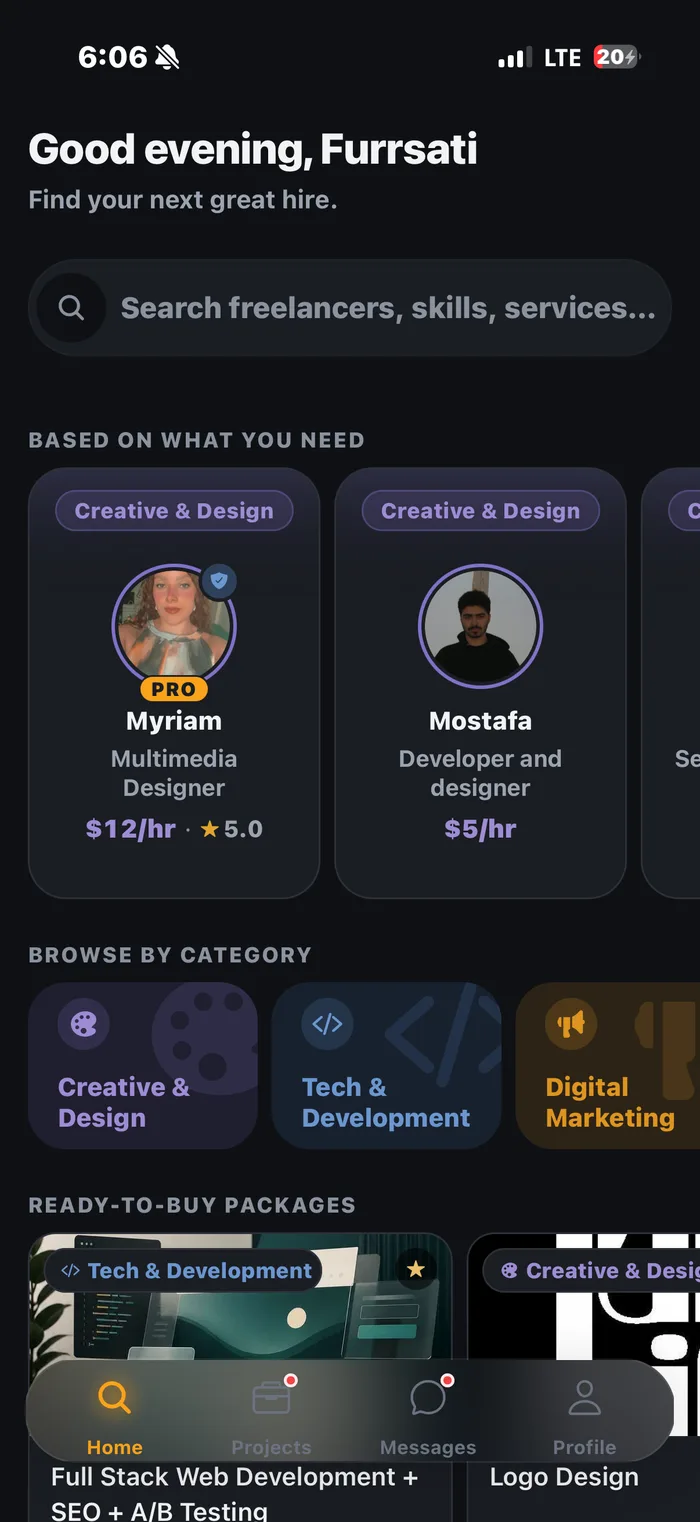
There is a website and a phone app, and they are the same product. Most people post their first project on a laptop because typing is easier, then live in the app afterwards for messages and approvals. Nothing is locked to one or the other.
1.2How a hire actually works, start to finish
Before the screenshots, here is the whole thing in six lines. Everything after this part is just these six steps in detail.
- You post a project, or send someone an offer directly.
- Freelancers apply. You compare them and pick one.
- You agree the price and split it into milestones, chunks of work, each with its own price.
- You pay for the first milestone. We hold that money.
- They do the work and submit it. You look at it and either ask for changes or approve it.
- You approve, we release the money to them, and you leave a review.
1.3What it costs you
Creating an account, posting projects, receiving proposals, messaging and inviting people all cost nothing. There is no monthly charge and no fee for posting.
The only thing you pay on top of the work itself is a standard 5% card processing fee when you fund a milestone. Here is a real example on a 250 dollar milestone:
| On a $250 milestone | Amount |
|---|---|
| Milestone amount | $250.00 |
| Card processing fee (standard 5%, added on top) | $12.50 |
| You pay by card | $262.50 |
| You pay from your Furrsati balance | $250.00 |
| Freelancer fee (standard 10%, taken from their side) | $25.00 |
| Freelancer receives | $225.00 |
The standard 10% is the freelancer's side of the deal, not yours, it comes out of what they earn, and it is the reason the platform exists at all. You never pay it. If you fund a milestone from your Furrsati balance rather than a card, the processing fee does not apply either.
Part 2 of 11
Create your account
Signing up as someone who hires takes four screens and about two minutes. You are not asked for a card, and clients are not asked for an ID check.
2.1Say that you are here to hire
The first screen asks whether you are looking for work or looking to hire. Choose hiring. This decides what the whole app looks like afterwards, the hiring side and the freelancer side are genuinely different products.
2.2Email and password
Use an email address you actually read, every proposal, message and payment receipt goes there. The password requirements are shown as you type, so you can see when it is strong enough rather than guessing.
You can also sign up with Google, LinkedIn or Apple instead, which skips the password entirely.
2.3Your name and phone number
Your name is what freelancers see when you message them or comment on their proposal. Your phone number is not shown to anyone, it is used to secure the account and to reach you if something goes wrong with a payment.
2.4Your company, and what you need help with
The company name is optional but worth filling in, freelancers take a named business more seriously than a first name on its own, and it appears on your profile.
The part that actually matters is the row of categories asking what you need help with. Whatever you pick here becomes the freelancers we put in front of you the moment you land on your home screen. Pick two or three that are genuinely relevant rather than everything.
2.5Confirm your email
We send a confirmation link as soon as you finish. Until you click it, a banner sits across the top of the app reminding you. You can browse, post and message before confirming, but confirm it before you pay for anything, because payment receipts and dispute notices go to that address.
Part 3 of 11
Finding your way around
There are only four places you need to know: where you find people, where your projects live, where your messages are, and your profile. Everything else hangs off one of those.
3.2Every project in one list
Projects is the one screen worth learning properly. A posted project, an offer you sent someone, and a contract you are already paying for are three different things, and they all live here behind a row of filters.
- All, everything, newest first.
- Active, work that is underway right now.
- Posted projects, things you have published that are still taking proposals.
- Offers, direct offers you have sent to a specific freelancer.
- Completed, Disputed, Cancelled, the closed pile, kept for your records.
3.3Notifications
You are told when a proposal arrives, when a freelancer replies, when work is submitted for your approval, and when a payment goes through. Tapping a notification takes you to the exact thing it is about rather than dumping you on a list.
Part 4 of 11
Post your project
Posting is free and takes a few minutes. There are two ways in: answer a few questions and let the assistant write the posting for you, or write it yourself in three short steps. Both end in the same place, and you can edit anything the assistant produced.
4.1Two ways to post
Most people who have never written a project posting should take the assistant. It asks what you need in plain language and turns your answer into a proper posting with requirements, deliverables and the right category attached. If you already know exactly what you want, write it yourself and skip the questions.
4.2Letting the assistant write it
You get a short run of questions: what you need done, roughly what you want to spend, how soon, and anything specific. Answer in whatever words come naturally, full sentences are not required.
4.3What the assistant gives you back
One pass turns your answers into a complete posting: a title, an overview, what you require, what you expect delivered, the category, and the skills to match on. Every one of those is editable. Read it before posting, it is a good first draft, not a finished contract.
4.4Writing it yourself: describe the work
Only two fields are required, a title and an overview. Requirements and deliverables are there if you want them, and they are worth the two extra minutes: postings that say what "done" looks like get better proposals and far fewer arguments later.
4.5Scope and pay
Pick the category and the skills, then set what you are willing to spend. You can name a single figure or a range, a range is usually better for a first project, because it invites people to tell you what the work actually costs.
Set a timeline too. It filters out anyone who cannot make it and it is the first thing a good freelancer looks at.
4.6One-off project, or a monthly retainer
The same screen lets you choose how the work is paid for, and this is the choice people most often get wrong.
- Project, one piece of work with an end. A logo, a website, a video. You agree a total and split it into milestones.
- Retainer, ongoing work with no fixed end, billed by the day, week or month. Someone running your social media, or a developer on call.
4.7Check it, then publish
The last screen is everything you have written, grouped, with a link back to whichever bit you want to change. Publish when it reads the way you would say it out loud.
4.8Hiring a whole team at once
Some work needs three people, not one. A launch might need a designer, a copywriter and a developer. Rather than posting three separate projects and running three separate conversations, describe the whole thing once and it gets split into pieces, one per person.
You price each piece and publish them together. You hire for each piece separately, so you are never forced to take a package deal, and everyone you hire ends up in one shared group conversation with you.
Part 5 of 11
Find the right freelancer
You do not have to sit and wait for proposals. You can go and get people: invite the closest matches to your project, search the whole marketplace yourself, buy a fixed-price service outright, or send one person a direct offer.
5.1Invite the best matches to your project
The moment a project is live, you are shown the freelancers who fit it, ranked. This is the fastest way to get good proposals, an invitation from a real client with a funded-looking project gets answered far more often than a posting sitting in a list.
Inviting is free, it does not commit you to anything, and you can invite as many people as you like.
5.2Why they are ranked that way
Tap the score and it opens up. The ranking is not a black box or a paid placement, it is a sum of things you can check yourself: whether their skills match what you asked for, whether they have done this category of work before, whether their rates sit inside your budget, and how their past projects went.
5.3Browse everyone yourself
You do not need a live project to look around. Explore holds every freelancer on the platform, sorted into categories, alongside the ready-made services they sell.
5.4Narrow it down
Filter by skill, by hourly rate, and by minimum rating. If you have a number in mind, filtering by rate first saves the most time, it removes the conversations that were never going to end in a deal.
5.5Read a freelancer's profile
A profile leads with the things that are hard to fake: how many projects they have finished here, what share of them ended well, their rating, and whether any clients came back for a second project. Repeat clients is the single most useful number on the page.
5.6Their past work and what clients said
Scroll down for the portfolio and the reviews. Reviews here come only from clients who actually paid for a finished project, so there is no way to collect them without doing the work.
5.7Ready-made services
Some freelancers sell fixed packages with a set price and a set delivery time, a logo for a fixed fee, a set number of edited videos, a translation up to a word count. If the work is standard, this skips the whole posting and proposal process.
5.8Buying a service outright
A service page tells you exactly what you get, what it costs and how long it takes. You pay once, then write up what you need and attach any files, logos, references, copy. The money is held the same way as any other project, and released when you approve the delivery.
5.9Offering one person the project directly
If you already know who you want, skip the posting entirely. A direct offer goes to one freelancer with your terms attached: what the work is, what it pays, and how it splits into milestones.
They can accept it, turn it down, or come back with different terms. If they come back, you can counter again, there is no limit on the back-and-forth, and either side can walk away at any point before it is funded.
Part 6 of 11
Compare proposals and agree terms
Proposals arrive over the following days. Nothing is binding until you accept one and pay, so take your time, ask questions, and negotiate, the price on a proposal is an opening position, not a fixed rate.
6.1Proposals arrive
Each one shows you what they would charge, how long they would take, and their rating and track record, so you can compare like for like before opening any of them.
6.2Reading one properly
Open a proposal and you get the full picture: their price, their cover letter, and the milestones they propose to break the work into. The milestones matter more than the total, they tell you how this person thinks about the work and when you would be paying.
- Did they read the posting, or is this a template sent to everyone?
- Do the milestones match how the work actually happens?
- Is the first milestone a sensible size? A first milestone that is most of the total means you are carrying most of the risk up front.
6.3Countering
If the person is right but the number is not, counter. You set a different total, optionally restructure the milestones, and write a line explaining why. It goes back to them and they can accept it, decline, or counter you in turn.
6.4The whole back-and-forth is on the record
Every round is kept in order, what was proposed, by whom, when, and what was said. There is no limit to how many times you can go back and forth, and either side can walk away at any point before money changes hands.
If a dispute ever happens, this record is part of what gets reviewed. That cuts both ways, and it is why it is worth writing your reasons down properly at the time.
6.5Turning people down
Decline the ones you are not taking rather than leaving them hanging. It takes one tap, they get told, and it keeps your list clean. A short reason is optional and always appreciated.
Part 7 of 11
Accept and fund the work
This is the part people are nervous about, so it is worth being precise. Accepting creates a contract. Paying puts the money with us, not with the freelancer. They only receive it after you have seen the work and approved it.
7.1Accepting a proposal
Accept and you are shown exactly what you are agreeing to: the total, the milestones, and who you are hiring. Confirm, and a contract exists between the two of you.
7.2Your contract
The contract page is where the project now lives. It has both names on it, the agreed total, what has been paid, what is held, and what is still to come. Every action from here, funding, approving, disputing, starts on this page.
7.3Milestones, explained
A milestone is a chunk of the work with its own price. You pay for them one at a time, which is the whole point, you are never exposed for more than the current chunk.
Each one moves through the same states, and the page always shows you which one it is in:
| State | What it means |
|---|---|
| Pending | Agreed, but not paid for yet. No money has moved. |
| Funded | You have paid. We are holding it. Work should be underway. |
| Submitted | They say it is done and it is waiting on you to look. |
| Completed | You approved it and the money has gone to them. |
| Disputed | You could not agree. Our team is reviewing it and the money stays held. |
7.4Paying for the first milestone
Pay by card, or from your Furrsati balance if you have one. Card details are handled by Stripe, a payment processor used across the internet; we never see or store your card number.
7.5Exactly what you are charged
Before you confirm, you get the full arithmetic: the milestone amount, the processing fee, and the total leaving your card. Nothing is added after this screen and there are no charges later.
7.6Money in, work starts
The milestone flips to funded, the freelancer is told straight away, and the money sits with us. From their side, seeing it funded is the signal to start, it is the difference between a client who is serious and one who is still thinking about it.
Part 8 of 11
Working together
Keep the conversation on Furrsati. It is not a rule for its own sake, if something goes wrong, the messages are the evidence, and a dispute can only be judged on what our team can actually see.
8.1Your messages
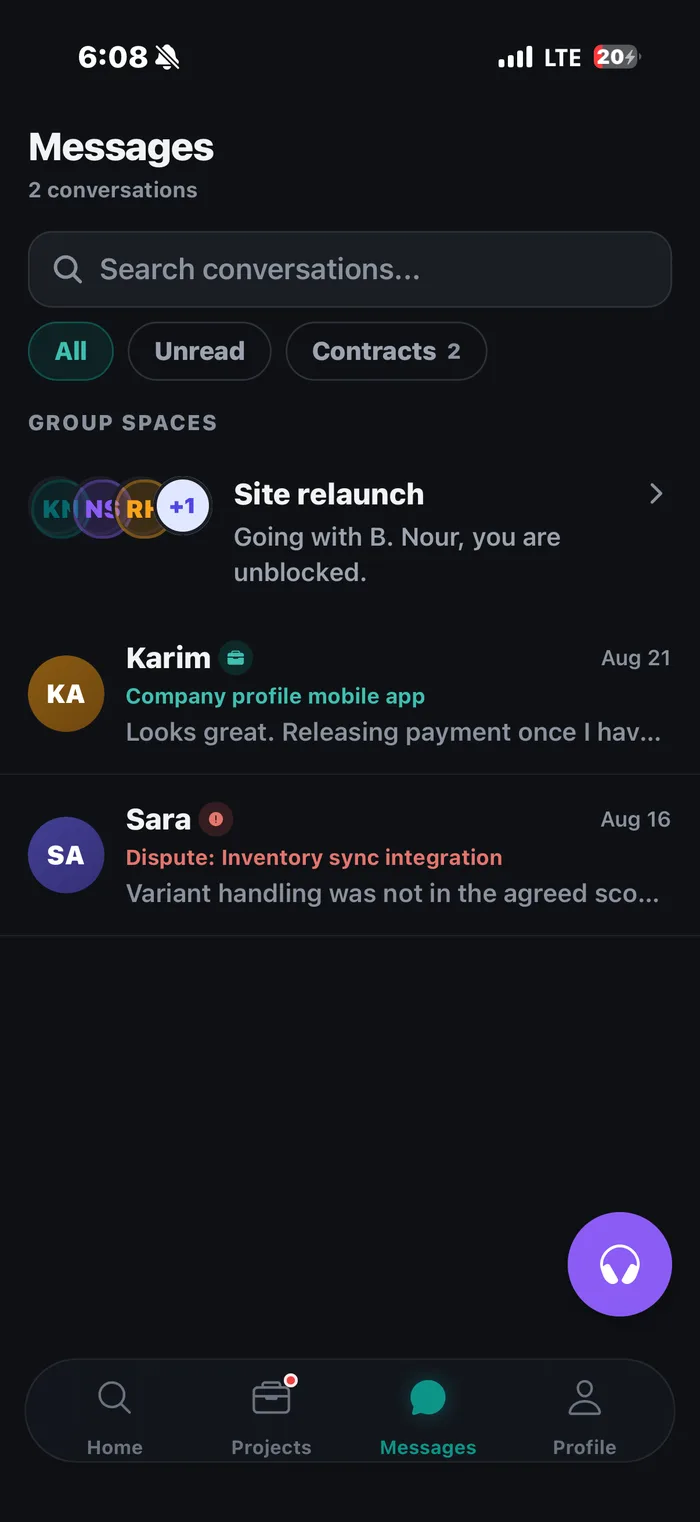
Every conversation lives in one inbox, people you have hired, people who have applied, and the group spaces for team projects. Unread counts sit on the menu so you can see at a glance whether anyone is waiting on you.
8.2A conversation
Messages arrive in real time. You can see when the other person is typing, when they were last online, and when they have read what you sent, which removes most of the "did they get it?" anxiety of email.
8.3Sending files
Send images, documents and reference material straight into the conversation. Everything stays attached to the thread, so a file you sent three weeks ago is still there when someone asks for it again.
8.4Voice notes
Hold the microphone and talk. Explaining a design change out loud takes fifteen seconds and three paragraphs of typing, this is the fastest way to give feedback that is hard to write down.
8.6A shared space for teams
If you hired several people onto one project, you can put them in a group conversation together. You control who is in it and you can add or remove people as the project changes.
Part 9 of 11
Approve the work and pay
The freelancer submits, you look, and you either ask for changes or approve. Approving is what releases the money, and it is your decision. If you do nothing, it is released automatically 10 days after delivery.
9.1Work submitted
You are notified as soon as it lands. The milestone shows what they delivered, any files attached, and a note from them. The money stays held while you look. If you do nothing, it is released automatically 10 days after delivery, and you get a reminder 2 days before.
9.2Asking for changes
If it is not right, send it back with notes. The milestone returns to being worked on, the money stays held, and nothing is lost. Be specific, "the logo should be bolder and the blue should match our website" gets you what you want; "I don't like it" gets you another round of guessing.
9.3Approving and releasing the money
When you are happy, approve. You are shown exactly what is about to be released and to whom, and you confirm once.
9.4Paid
The milestone is marked completed, the money lands in their Furrsati balance, and both of you have a permanent record of it. If there are further milestones, the next one is now ready to fund.
9.5Leaving a review
Once the work is paid for, you are asked to rate it. This is the only way ratings are created on Furrsati, which is what makes them worth reading, nobody can collect reviews without having been paid for finished work.
Your name and photo are not shown on the review. Other businesses see the rating, the comment and the size of the project, but not who you are.
Part 10 of 11
If something goes wrong
Most projects finish without any of this. But the reason it is safe to hire a stranger on the internet is that there is a way out when it does not, and you should know what it is before you need it.
10.1Raising a dispute
If the work is not what was agreed and you cannot resolve it between you, open a dispute on that milestone. The money stops where it is, it does not go to them and it does not come back to you, until the case is decided.
You are asked to explain what happened. Write it properly: what you agreed, what you received, and what is missing. This is what our team reads.
10.2What happens next
- Either side opens a dispute on a funded milestone, and the money freezes.
- Both sides are asked for their account and any evidence: files, screenshots, the messages already in the thread.
- Our team reviews it and decides within 48 hours.
- The money goes to the freelancer, comes back to you, or is split to reflect what was actually delivered.
You can follow the case the whole way through and see its status at any point.
Part 11 of 11
Your account
The housekeeping: your cards, your spending record, getting your business verified, and where to change how the app behaves.
11.1Cards and spending
Save a card so you are not re-typing it on every milestone, and keep as many as you like. Card details are held by Stripe, we store a reference to the card, never the number.
Alongside it is every payment you have ever made, with a link from each row to the project it belongs to. That is your record for the accountant.
11.2Getting your business verified
Verification is not required in order to hire. You can post a project, message people and pay for work without it, a new account has full access from the moment you sign up.
It is still worth doing. A verified account is treated as trusted, which means your projects and messages skip the automatic content checks that everyone else's go through, so what you post appears straight away.
11.3Settings and language
Change your password, choose which emails you receive, switch between light and dark, and set the language. Furrsati is in English, Arabic and French, and Arabic lays the whole interface out right to left.
You can also block someone you would rather not hear from, and delete your account outright, which really does delete it.
11.4Getting help
There is a support assistant inside the app that answers most questions about fees, payments and verification straight away. If it cannot help, it puts you through to a person.
For anything else, a partnership, a large project, or something that needs a conversation, use the contact form on the website and we will reply by email.